How to: View Drawer Entries
The Drawer Entry List is a read-only audit log of every transaction that has affected a cash drawer. Each entry records the drawer, the type of transaction, the document number, the amount, the payment method, the staff member, the store, and the date and time of posting. You can use this list to review drawer activity, investigate discrepancies, or trace a specific transaction back to its source document.
How to: Open the Drawer Entry List
The Drawer Entry List cannot be opened directly from the search bar. You can open it from the following locations:
-
From the Drawers page: Open the Drawers page and select a drawer. Click the value in the Amount column to drill down into the drawer entries for that drawer.
-
From a posted close-out summary: Open a posted close-out summary and click the amount in the Sales, Add to Drawer, or Remove from Drawer columns to open the Drawer Entry List filtered to those transactions.
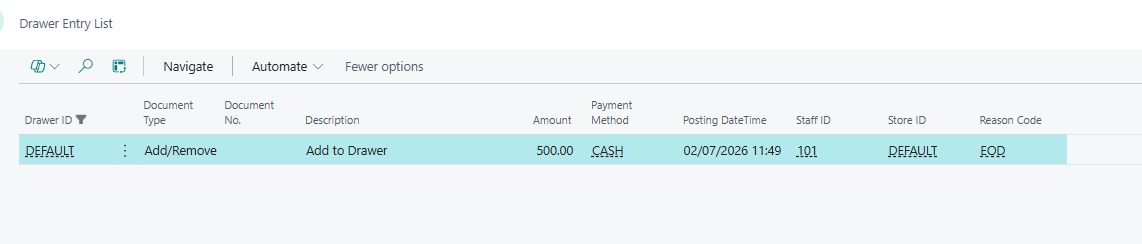
Fields on the Drawer Entry List
| Field | Description |
|---|---|
| Drawer ID | Specifies to which drawer the entry was assigned. |
| Document Type | Specifies what type of document created the entry. Possible values are Invoice, Credit Memo, Add/Remove, End of Day, To Cust.Account, Refund Payment, and Fixed Float. |
| Document No. | Identifies the posted document that created the entry. |
| Description | Specifies the automatically generated narrative text for the entry, such as the payment reason, the change amount given, or the settlement type (for example, Fixed Float or End of Day). |
| Amount | Specifies the payment amount. Amounts from Add/Remove entries appear as positive (add) or negative (remove) values. |
| Payment Method | Specifies the payment method used for the entry. |
| Posting DateTime | Specifies the date and time when the document was posted. |
| Staff ID | Specifies the staff member that posted the document. |
| Store ID | Specifies in which store the document was posted. |
| Reason Code | Specifies the reason code on the entry, if one was provided when the transaction was posted. |
Actions on the Drawer Entry List
The following actions are available in the Navigate menu on the action bar:
-
Show Document: Opens the posted invoice or credit memo that created the selected entry. The action itself is enabled for every entry except Document Type To Cust.Account, but it only actually opens something for entries with Document Type Invoice or Credit Memo — for other types (Add/Remove, End of Day, Refund Payment, Fixed Float), selecting it does nothing.
-
Print Receipt: Prints a payment receipt slip for the selected entry. This action is available for entries with Document Type To Cust.Account.
-
Navigate: Opens the Business Central Navigate page, which finds all entries and documents linked to the document number and posting date of the selected entry.
How to: Filter drawer entries
The list opens sorted by entry number in descending order, showing the most recent entries first. You can use the standard Business Central filter pane to narrow the list by any visible field, for example to show entries for a specific drawer, staff member, date range, or document type.
-
Open the Drawer Entry List.
-
Select Filter list (the filter icon) to open the filter pane.
-
Add filters for the fields you want to narrow by, such as Drawer ID, Staff ID, Document Type, or Posting DateTime.
Note: The list is read-only. Entries cannot be added, modified, or deleted from this page.
See also