Fiskaly Logs
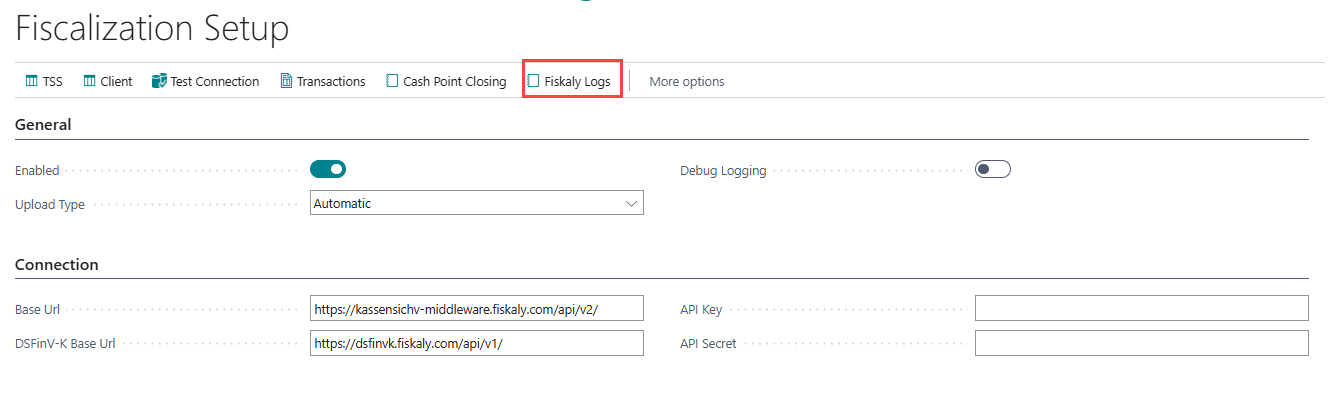
The Fiskaly Logs page displays a read-only record of every API request and response exchanged with the Fiskaly server during the fiscalization process. Use this page to audit and troubleshoot the Fiskaly integration—for example, when a transaction fails to upload, when an error message appears, or when you need to provide proof of submission to an audit partner.
To open the Fiskaly Logs page:
-
Go to Administration > Navigate > Fiscalization Setup.
-
On the Fiscalization Setup page, choose Fiskaly Logs from the ribbon.
-
The Fiskaly Logs page opens, showing the most recent API calls first. You can sort, filter, or search the list to find the log entry you need.

Log Entry Fields
| Field | Description |
|---|---|
| Log No. | Auto-incremented log entry number. |
| BC Transaction No. | The Business Central transaction number this log entry relates to. |
| Fiskaly Transaction ID | The Fiskaly-side transaction identifier (GUID). |
| API Endpoint | The Fiskaly API URL that was called (e.g., /transactions or /sign). |
| HTTP Status Code | HTTP response code returned by Fiskaly (e.g., 200 for success, 400+ for error). |
| Is Error | Yes/No flag indicating whether the API call failed. |
| Error Message | Detailed error text returned by Fiskaly when the call failed. |
| Store ID | The LS Express store that originated the API call. |
| POS Terminal No. | The POS device number that originated the API call. |
| Created At | System timestamp when the log entry was created. |
| Created By | User account that triggered the API call. |
To view request and response payloads
-
On the Fiskaly Logs page, select the log entry you want to inspect.
-
Choose Get Payloads from the ribbon.
-
A dialog displays the raw JSON Request Payload sent to Fiskaly. Review the request data and choose OK.
-
A second dialog displays the raw JSON Response Payload returned by Fiskaly. This shows the server's reply, including any error codes or transaction IDs. Choose OK.
Note: The Fiskaly Logs page is read-only. Log entries are created automatically when API calls are made and cannot be deleted manually. To search for a specific transaction, filter by Store ID, POS Terminal No., or Fiskaly Transaction ID to narrow the results.