Fiskaly Transactions
The Fiskaly Transactions page shows all store transactions along with their status and related details.
To view Fiskaly transaction entries:
-
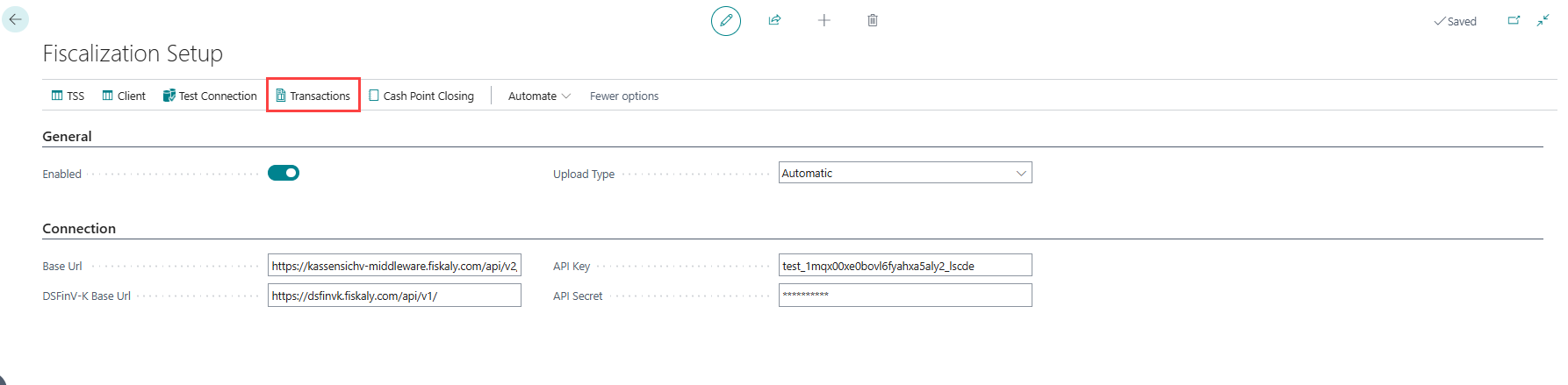
On the Fiscalization Setup page, select Transactions.
-
The Fiskaly Sales Transaction page opens.
-
Select an entry number line, then choose Manage > View to see transaction details.
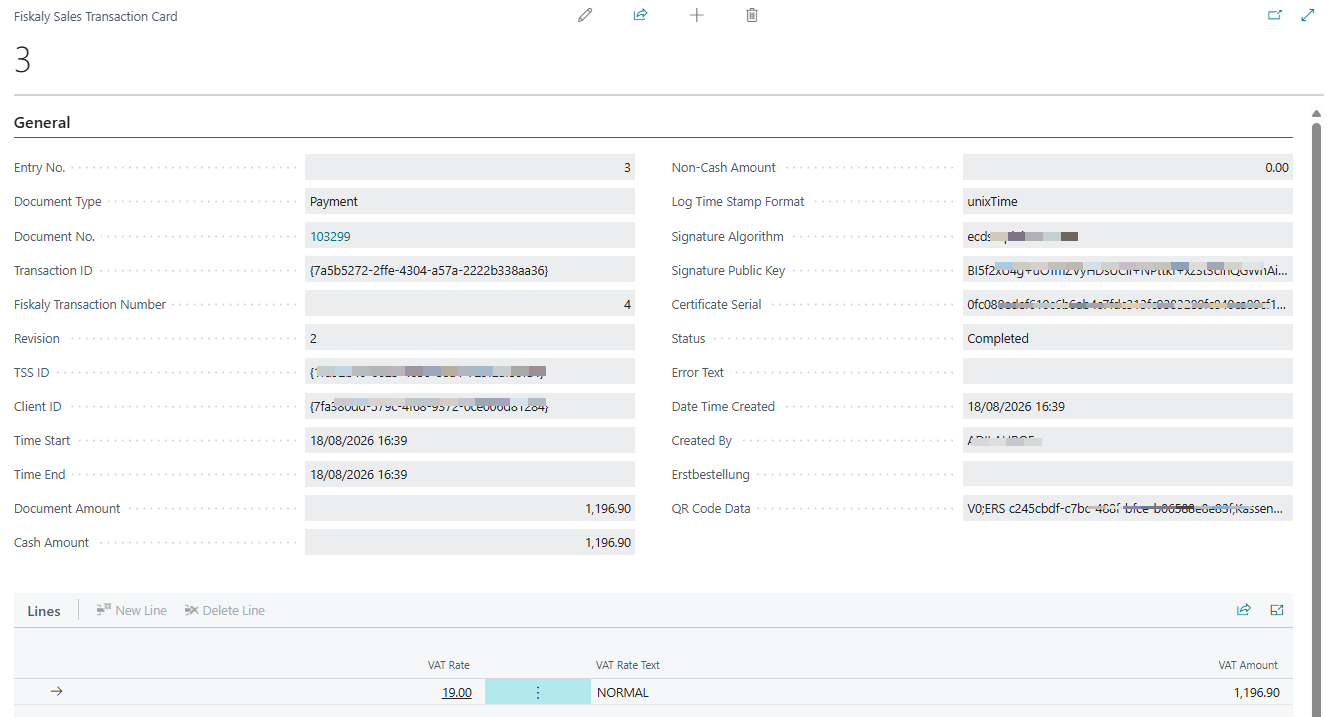
Field Description Entry No. Unique number assigned to the fiscal entry record. Fiskaly Transaction Number Number assigned to the registered transaction. Fiskaly State Status from Fiskaly, such as Active or Finished. Document Type Type of document, such as, Payment. Document No. Posted Sales Invoice number. Applies-to Document Type Document type of the related transaction such as, Invoice. Applies-to Document No. Document number of the related transaction. Service Document Transaction ID ID returned by Fiskaly. Revision Document Amount Total amount of the transaction (sales or returns). Cash Amount Amount paid in cash. Non-Cash Amount Amount paid using other methods. Status Current stage of the transaction: Pending, Completed, Error. Error Text Displays error details if the transaction failed to upload. -
When a transaction is finalized in the POS, LS Express automatically uploads the payment or receipt to the Fiskaly server if Upload Type is set to Automatic.
-
If Upload Type is set to Manual, select the transaction and click Upload.
-
After a successful upload, the Status field changes from Pending to Completed.
-
-
Click Refresh to update the transaction status from the Fiskaly server.

TSE signature fields
Each Fiskaly transaction also stores the TSE (Technical Security System) fiscal signature data returned by Fiskaly for that transaction. These fields also print on the customer's payment receipt when a payment is posted to a customer's account and the store uses Fiskaly:
| Field | Description |
|---|---|
| Certificate Serial | Serial number of the TSE certificate used to sign the transaction. |
| Client Serial Number | Serial number of the client (cash register) registered with the TSE. |
| Signature Value | The cryptographic signature that Fiskaly generated for the transaction. |
| Log Time Stamp Format | The timestamp format that was used when the signature was created. |
| Signature Algorithm | The hash algorithm used to create the signature. |
| Signature Public Key | The public key of the TSE certificate, used to verify the signature. |
| QR Code Data | The data encoded in the QR code that Fiskaly returns for the transaction, so that customers and auditors can verify it online. |