SAF-T Setup in LS Express
SAF-T (Standard Audit File for Tax) Setup in LS Express involves configuring certificates, VAT posting setup, and generating SAF-T cash register XML files.
Configuring Outbound Code with Item Categories
Generating SAF-T Cash Register XML file
Uploading a Certificate
-
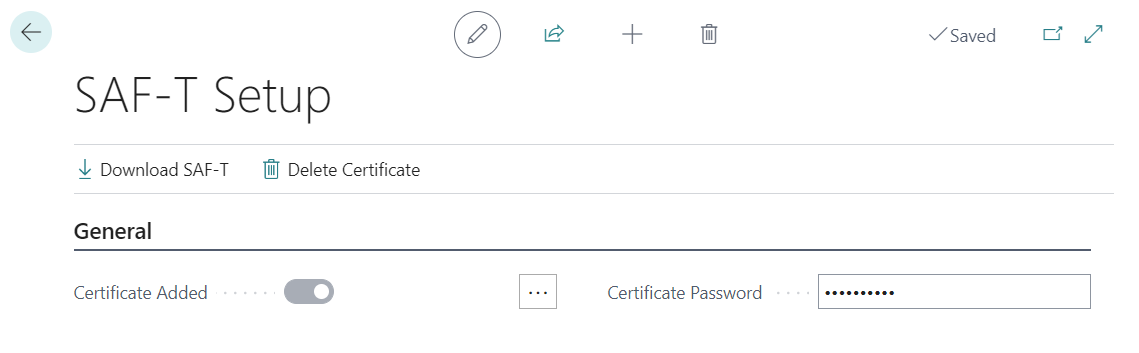
Open the SAF-T Setup from the Administration page.

-
In the General FastTab, click on the assist edit button to upload the certificate.
-
If the certificate has a password, enter it before uploading.
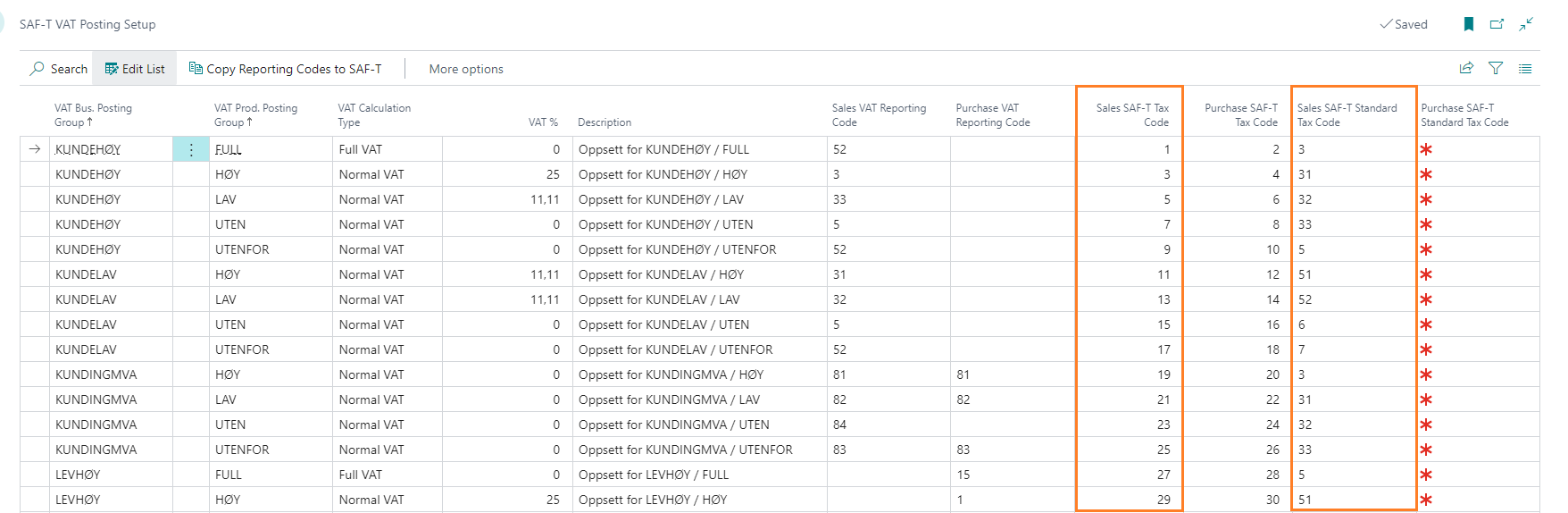
SAF-T VAT Posting Setup
In the SAF-T VAT Posting Setup page, the Sales SAF-T Tax code and Sales SAF-T Standard Tax code must be filled in. These codes will be used for the TaxCode XML node and the StandardTaxCode XML node in the SAF-T file for the sales VAT entries.
-
Search for SAF-T VAT Posting Setup and select the relevant link.
-
Fill in the Sales SAF-T Tax Code and Sales SAF-T Standard Tax Code.
These codes will be used for the TaxCode XML node and the StandardTaxCode XML node in the SAF-T file for sales VAT entries. Enter the codes based on the VAT Bus. Posting Group and VAT Prod. Posting Group fields.
Configuring Outbound Code with Item Categories
-
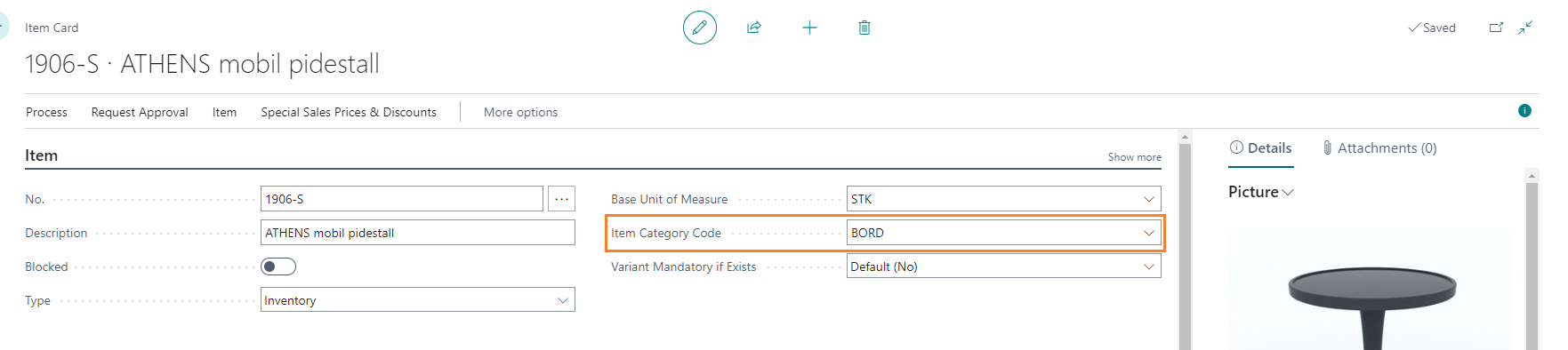
Ensure each item has its own item category.
-
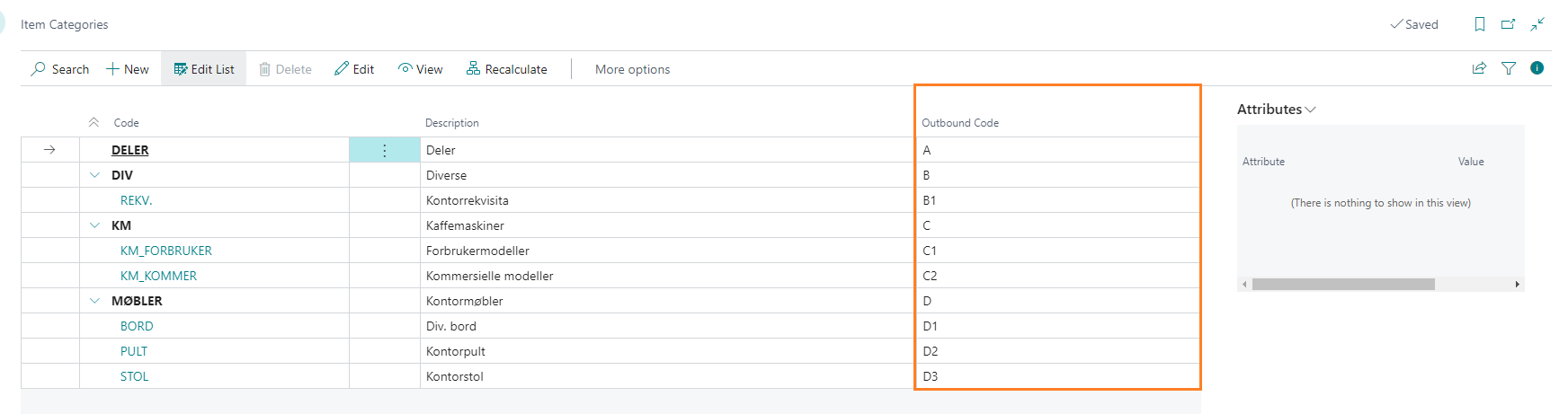
Go to the Item Categories page and fill in the Outbound Code field according to the item's category code.
Generating SAF-T Cash Register XML file
-
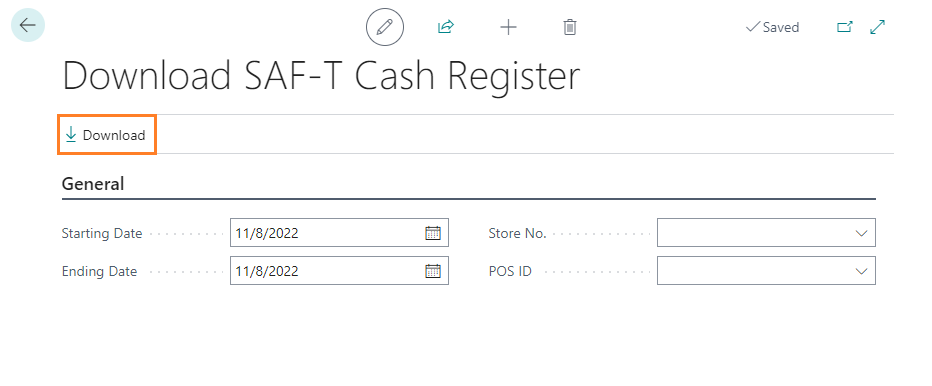
Select Download SAF-T action to download the SAF-T cash register file in XML format.

-
Enter the starting and ending dates, choose the store number, and specify the POS ID if applicable.
-
Click Download to generate the SAF-T cash register file.
-
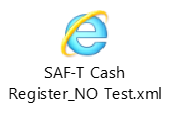
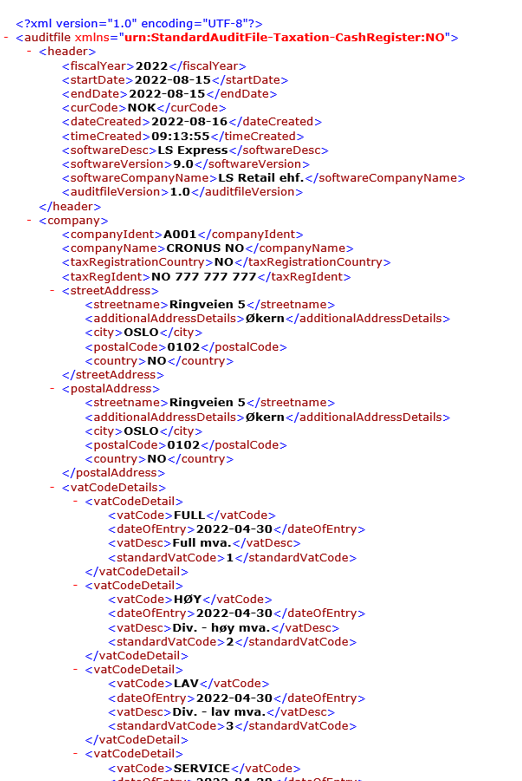
The downloaded file will be in XML format.
-
To validate the SAF-T data files (XML) against the SAF-T Schema (XSD), run the Norwegian SAF-T XML Validator apps.