Barcode
LS Express supports item barcodes. Each barcode represents specific information about the item to which it is attached.
How to: Scan an Item Barcode
-
Scan the barcode with a scanner. If the barcode is linked to an item, the item will be added to the sale. Note that the focus must be on the input field when scanning.

How to: Look Up an Item by GTIN
In addition to the item number and barcode, you can type or scan an item's GTIN in the same item input field at the POS. If the value you enter matches an item's GTIN, that item is added to the sale, the same as if you had entered the item number.
Note: If the value you type or scan does not match any item number, barcode, or GTIN, the item is not found and the usual "item not found" message is shown, the same as when an unrecognized item number is entered.
How to: Set a Barcode for a Specific Unit of Measure
A barcode can be linked to a specific Unit of Measure for the item instead of the item's default unit of measure. This is useful when the same item has more than one barcode depending on how it is packaged, for example a barcode for a single piece and a different barcode for a case of that item.
-
On the barcode line for the item, select a code in the Unit of Measure field. Only units of measure that are set up for that item can be selected.
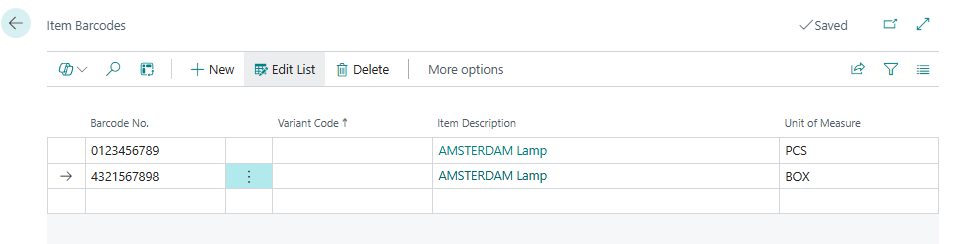
-
Leave the field blank if the barcode should use the item's default unit of measure.
Note: When a barcode that has a Unit of Measure set is scanned or entered at the POS, the item is added to the sale using that unit of measure, not the item's default unit of measure.
How to: Search Item with Barcode in POS
-
Click on the "All Items" or "My Items" action on the POS screen to access the item list.
-
In the item list, locate the Barcode input field.
-
Type in or scan the barcode of the item you want to search for. You can either manually enter the barcode using the keyboard or use a barcode scanner to scan the barcode.

-
The system will search for the item with the entered barcode and open the Item card for that specific item.