Reset Password
How to: Reset the Staff Password
-
Open the Point of Sale (POS) application.
-
Log in with the Staff ID that you want to reset the password for.
-
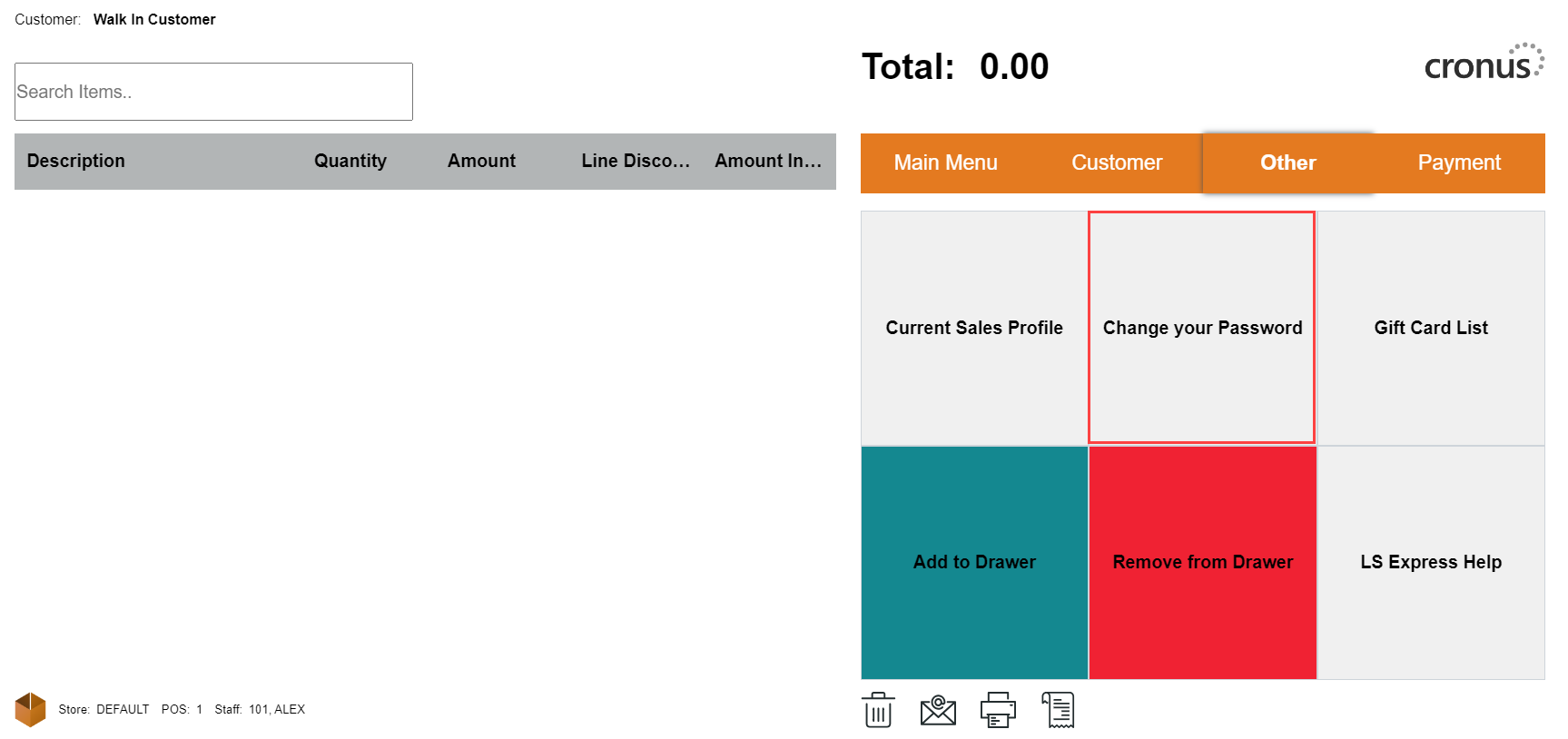
Once logged in, click on the "Other" option from the POS menu.
-
Select Change your Password action.
-
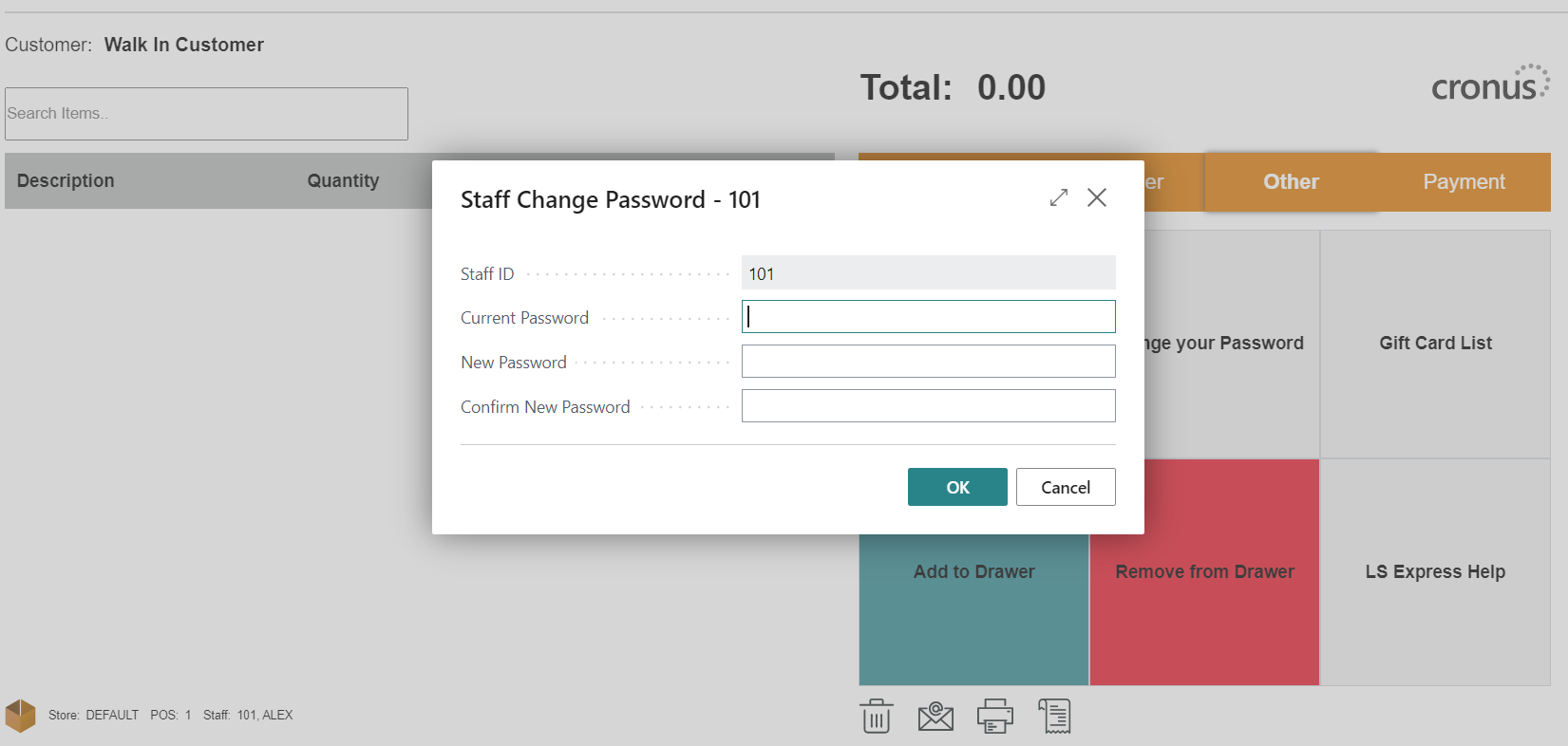
A window will prompt you to enter your current password. If the staff member does not have a password set, you can leave this field blank.
-
Enter the new password that you want to set for the staff member.
-
Confirm the new password by entering it again in the Confirm New Password field.
-
Click on the OK button to save the new password.
Note: As an administrator, you have access to all the updated password information from the staff page.