POS Sales
The Point of Sale (POS) interface in LS Express is where you create and manage sales transactions. From the POS, you can add items to a sale, apply discounts and promotions, process payments and refunds, suspend and retrieve sales, and print or send receipts.
You open the POS by selecting Point of Sale from the LS Express Role Center.
Action bar
The action bar provides access to the main actions you perform during a sale.
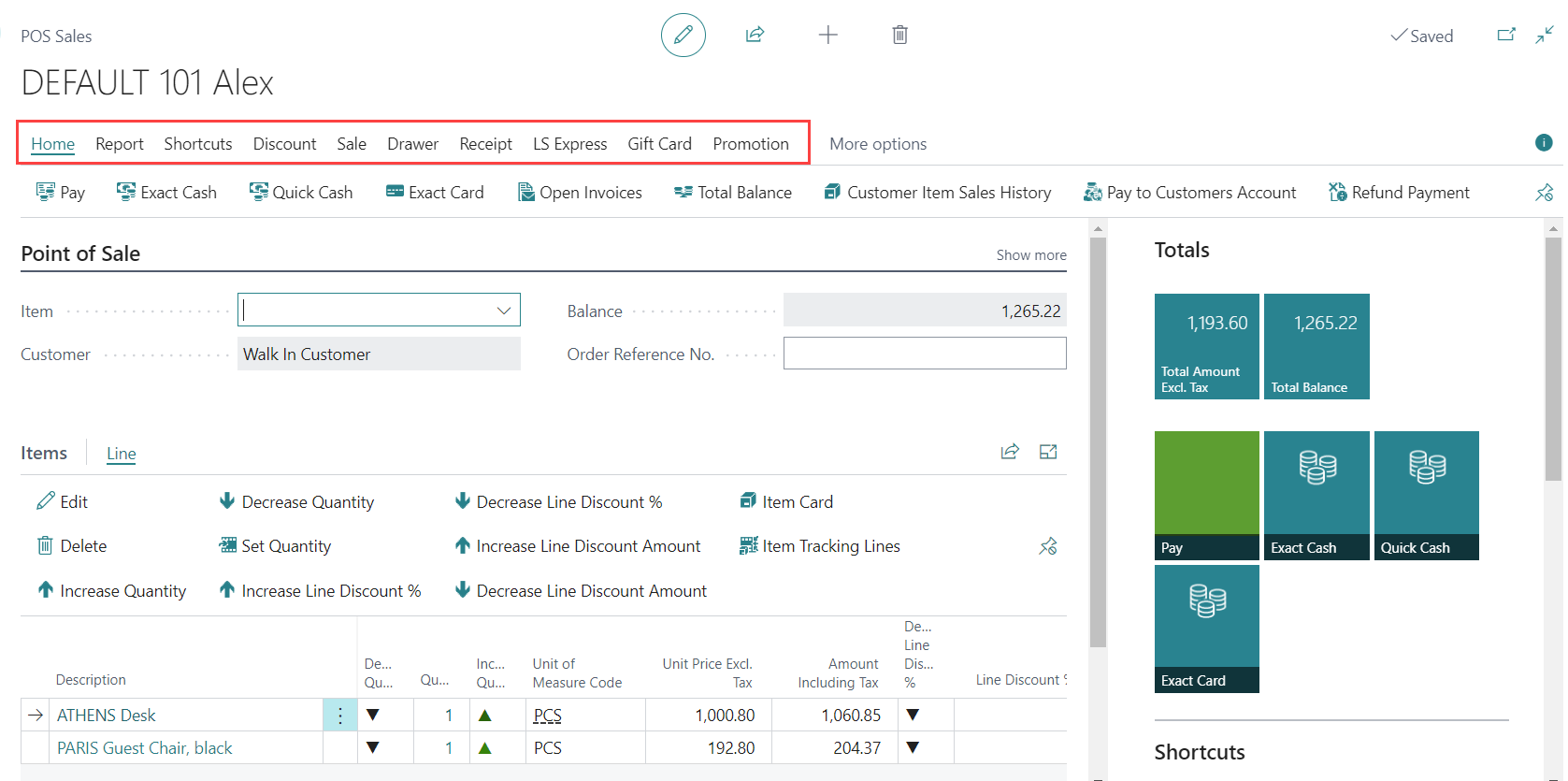
| Action | Description |
| Home | To select a payment method to finalize the sales, open sales invoice, specify balance of the sale, view a list of items previously purchased by the customer, accept a payment to be posted into a named customer's account, refund a payment to be posted into a named customer's account. |
| Report | To add customer information for invoice printing. |
| Shortcuts | To view a filtered list of items and customers, a list of all available items and customers. |
| Discount | To change the total amount due, apply the discount to the sale. |
| Sale | To view finalized sales where it is possible to print or send receipts, reverse sale or return items from a specific sale, delete or suspend the current sale and start a new sale, retrieve a sale from the list of suspended sales. |
| Drawer | To add to and remove from a specific drawer. |
| Receipt | To print invoice and slip for the last sale. |
| LS Express | To view current sales profile settings, change staff's password used for login, get help using LS Express. |
| Gift Card | To view gift card lists and entries. |
| Promotion | To select the promotion you can assign to the sales document quickly, add, view or remove promotion from the sales documents. |
Point of Sale FastTab
Use the Point of Sale FastTab to enter core sales information and monitor the current transaction.
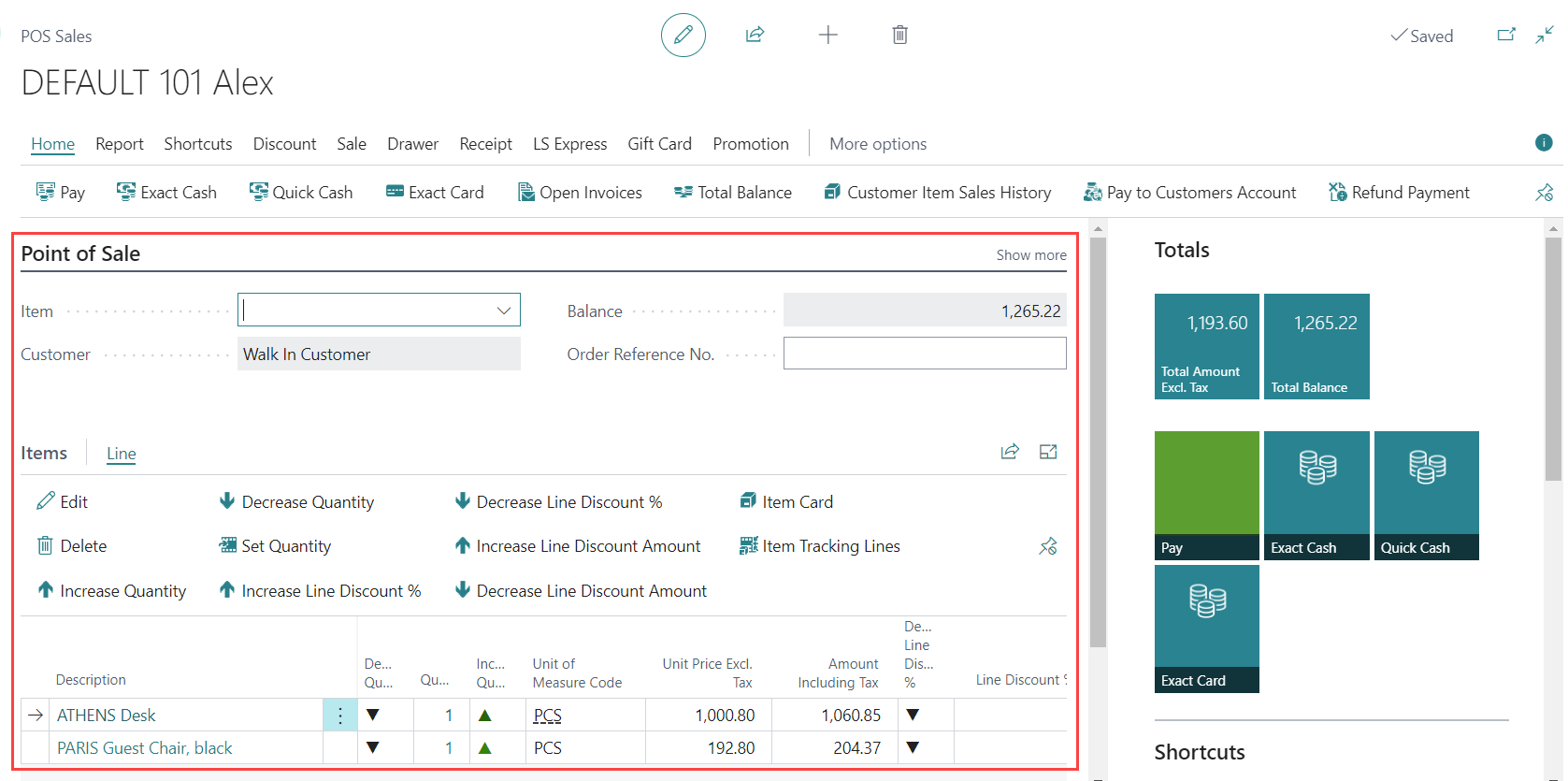
| Field | Description |
| Item | Add items to the sale using a barcode scanner or look up items by typing or expanding the item list downward. |
| Customer | Click "Show more" to see more details about the current customer. |
| Balance | The overall balance of the sale that need to be paid by the customer. |
| Order Reference No. | The Order Reference No. field stores the number in the Sales Invoice and Posted Sales Invoice page. |
Item FastTab
Use the Item FastTab to quickly add items to the sale.
Line FastTab
Use the Sales Lines FastTab to manage individual sales lines in the transaction.
| Field | Description |
| Edit | Modify the selected sales line. |
| Delete | Remove the selected item from the sale. |
| Increase Quantity / Decrease Quantity | Adjust item quantity directly. |
| Set Quantity | Enter a specific quantity manually. |
| Increase / Decrease Line Discount % | Adjust discount percentage applied to the line. |
| Increase / Decrease Line Discount Amount | Adjust discount value directly. |
| Item Card | Open the item card for additional item details. |
| Item Tracking Lines | View or edit serial numbers, lot numbers, or expiration dates (if applicable). |
Totals Cue Group
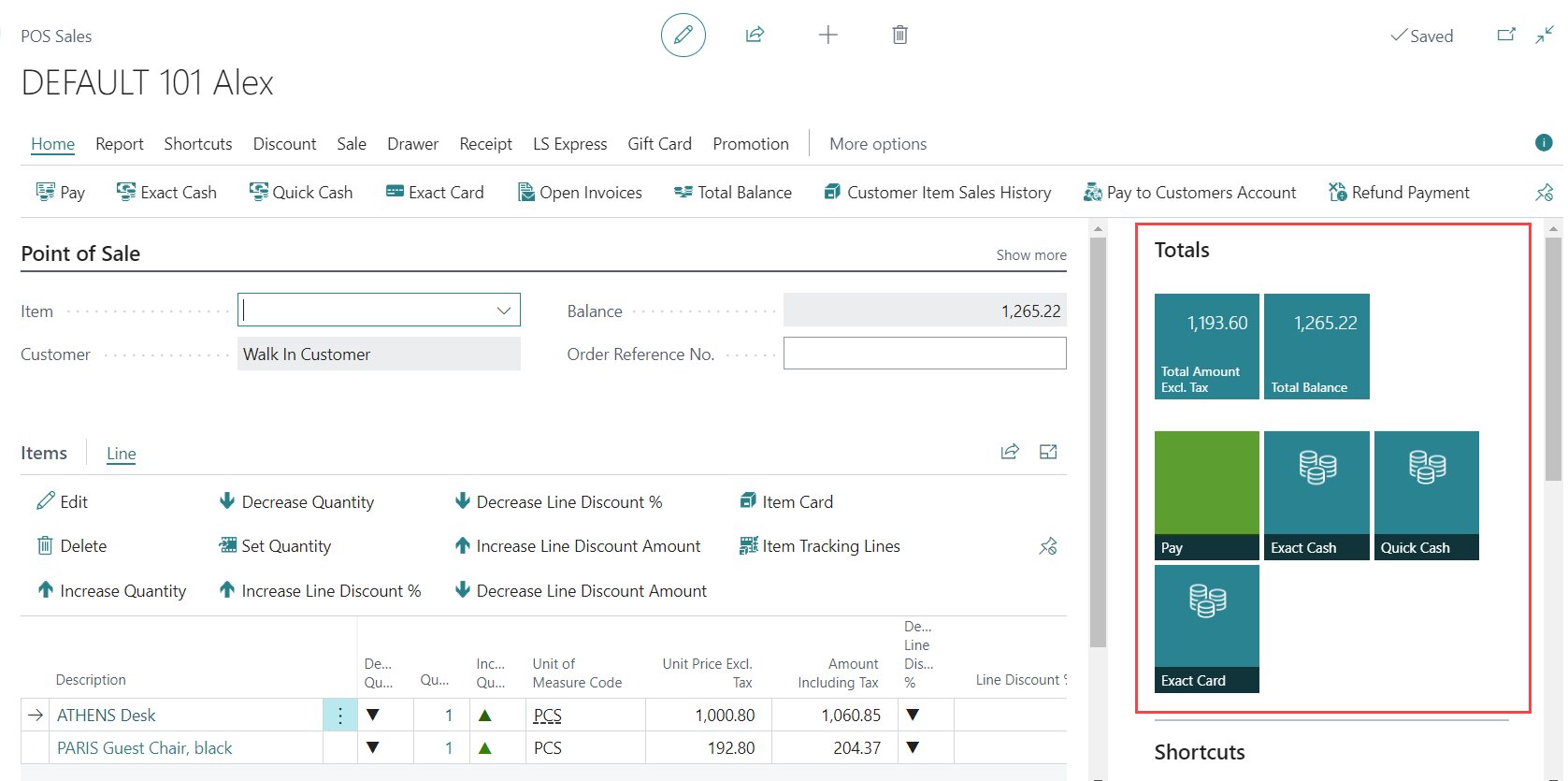
The Totals cue group provides an overview of the current sale, including totals with and without tax.
Shortcuts Cue Group
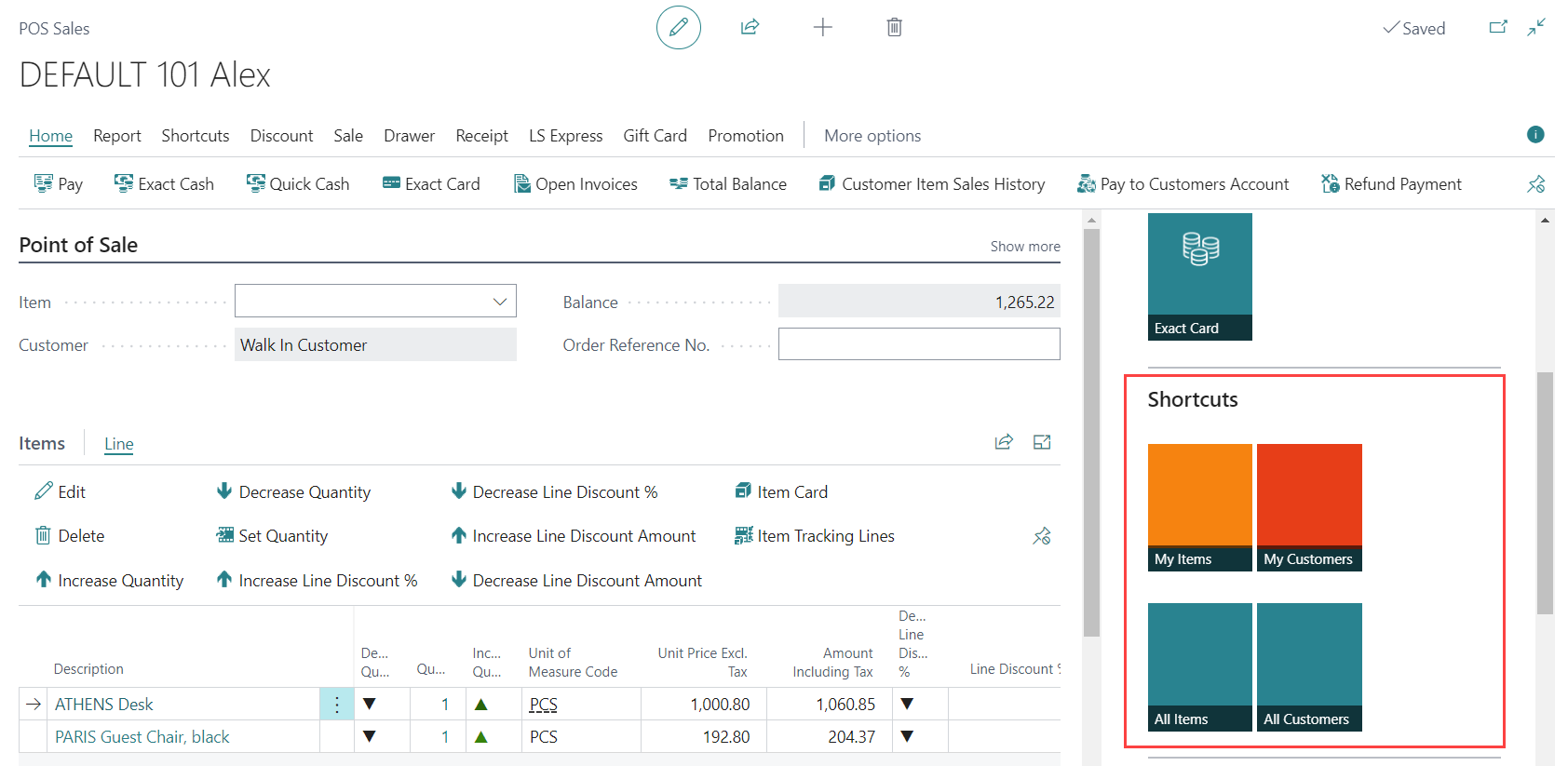
The Shortcuts cue group gives you quick access to commonly used items and customers.
Use the Filtered Item Group shortcuts to group items of your choice for quicker item entry. Configurations for these groups are done in the Sales Profile Card.