Customer Templates
Customer templates let you define a standard set of customer settings that are automatically applied when you create a new customer from a template. This ensures that POS restrictions and other defaults are consistent across customers created from the same template.
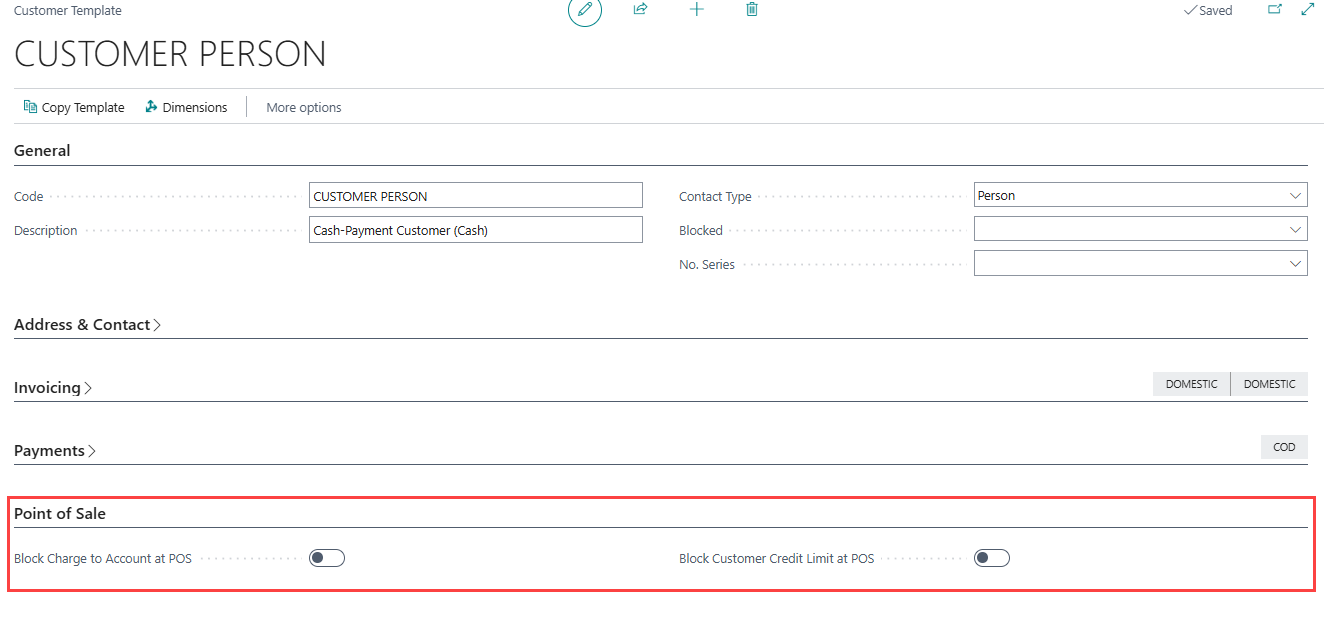
The Customer Template Card includes a Point of Sale FastTab with fields that control how the customer is handled at the POS. When you apply a template to a customer, the POS settings are copied to the customer record automatically.
Point of Sale FastTab
The following fields are available in the Point of Sale FastTab on the Customer Template Card:
| Field | Description |
|---|---|
| Block Charge to Account at POS | Specifies whether customers created from this template are blocked from posting sales to their account at the POS. When enabled, the Post to Customer action is not available for the customer at the POS, and the sale must be finalized using a payment method. This setting is copied to the customer record when the template is applied. |
| Block Customer Credit Limit at POS | Specifies whether customers created from this template are blocked from exceeding their credit limit during POS transactions. When enabled, any sale that would cause the customer to exceed the credit limit is blocked at the POS. Note that sales transactions with payment can still be posted. This setting is copied to the customer record when the template is applied. |
How to: Set up POS restrictions on a customer template
-
Search for Customer Templates, and select the relevant link.
-
Open or create the relevant customer template.
-
On the Customer Template Card, go to the Point of Sale FastTab.
-
Enable Block Charge to Account at POS if customers created from this template should not be allowed to post sales to their account at the POS.
-
Enable Block Customer Credit Limit at POS if customers created from this template should be blocked from exceeding their credit limit at the POS.
-
Save the template. The POS settings are applied automatically to any customer you create from this template.
Note: Applying a template copies the POS settings to the customer record at the time the template is applied. If you update the template later, the change is not automatically propagated to existing customers. You must update each customer record individually, or re-apply the template.
See also