Pay into a Customer's Account
Once the number series have been set up in Customer POS Payment and Refund Payment, the "Pay to Customer Account" and "Refund Payment" POS actions are accessible to make a customer payment or refund payment.
How to: Pay into a Customer's Account at the POS
-
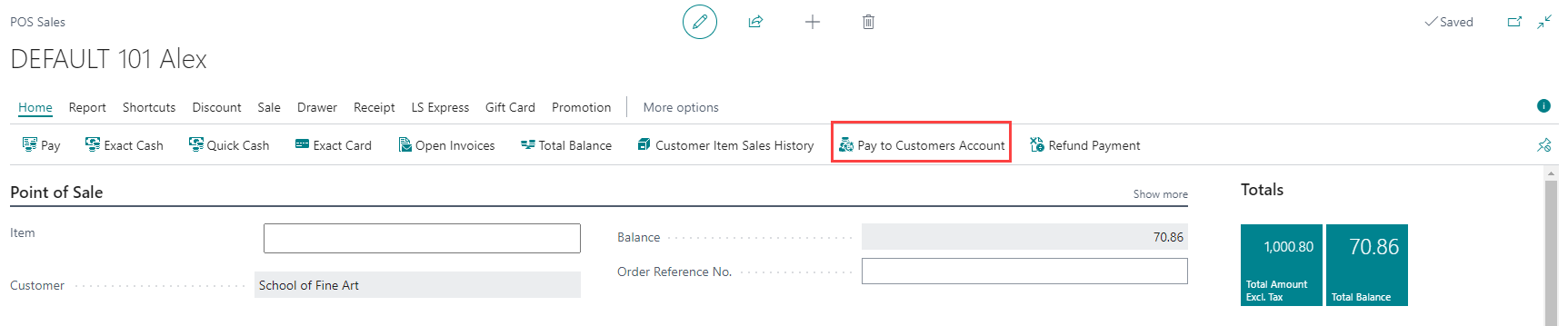
At the POS, select Pay to Customers Account.
-
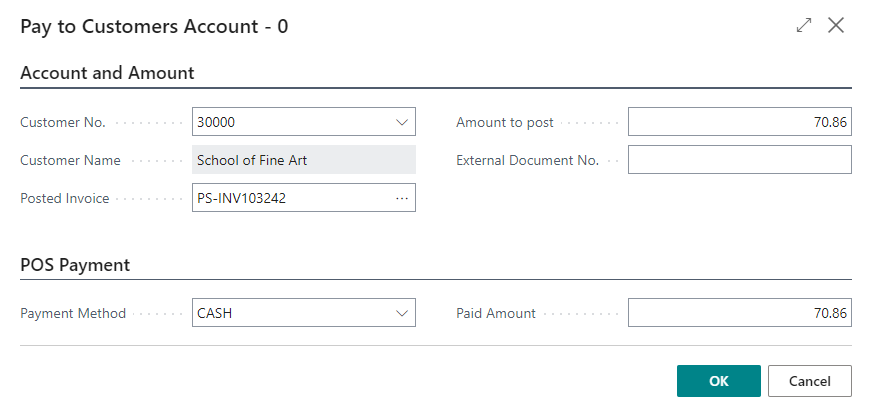
Once you have selected the customer, you will see a list of unpaid invoices for that customer when drilling into the Posted Invoice field. Then, select the Payment Method and amount to finalize the payment for the invoice.
LS Pay EFT: Card Information
When a payment is completed using an LS Pay payment method (such as a credit or debit card), the EFT transaction details are accessible directly from the Posted Sales Invoice. This allows you to verify and audit card payments without navigating away from the invoice.
To view LS Pay EFT details for a posted transaction:
-
Go to Sales History.
-
Select the relevant sales invoice by its document number. The Posted Sales Invoice page opens.
-
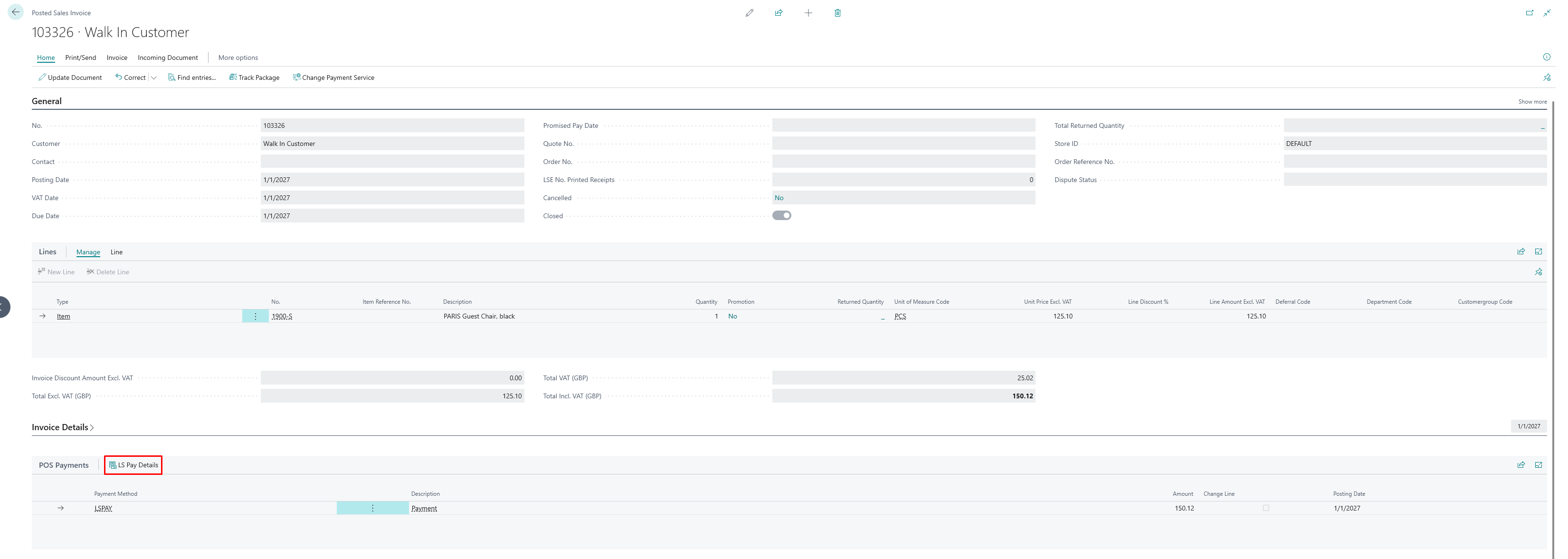
Open the POS Payments FastTab.
-
Select the LS Pay Details tab. The tab displays the EFT entry linked to the invoice payment.

Where available from the card payment, the EFT entry also shows the Card Type (the card network, for example MASTERCARD or VISA), the Card Last 4 Digits, and the Auth Code (authorization code). See How to: View EFT entries for a description of every field on the EFT entry.
See also
Post Invoice to Customer's Account
Refund into a Customer's Account