LS Express SE with TCS Setup
In this article
Configuring LS Express with Infrasec Registration Information
Viewing Infrasec Fiscal Entries
Note: LS Express operates differently from LS Central and does not require the use of a hardware station. Additionally, there is no need to install any certificate dll locally.
Configuring LS Express with Infrasec Registration Information
-
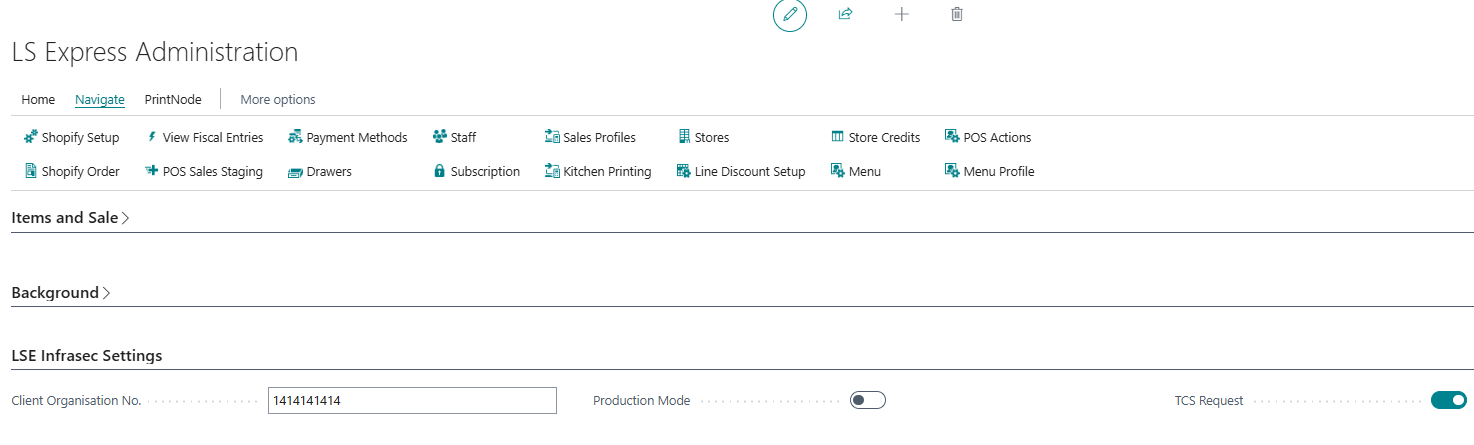
On the LS Express Administration page, enter the Client Organisation No. provided by Infrasec after the registration process is complete.
-
Enable TCS Request to allow LS Express to use the Infrasec TCS API .
-
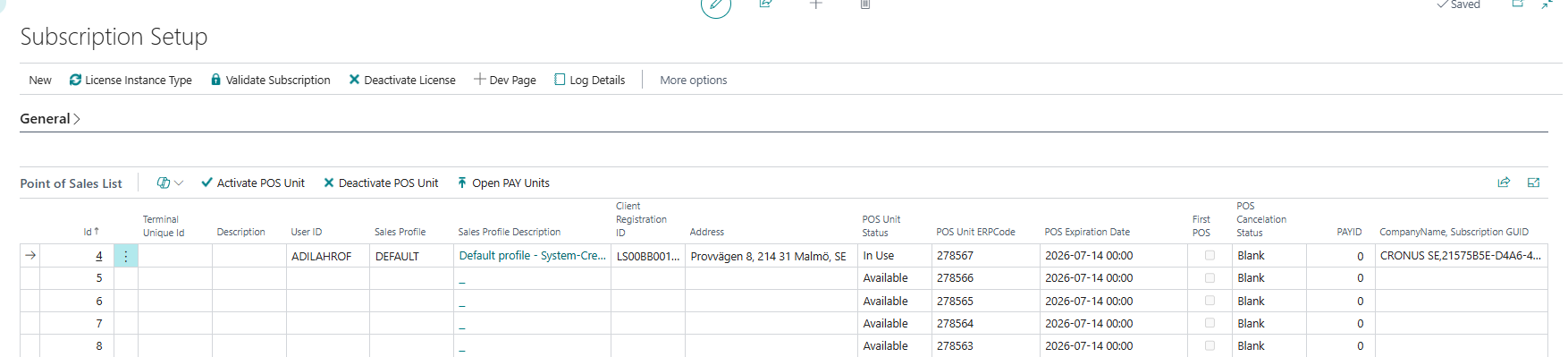
Navigate to Administration > Navigate > Subscription. The Subscription Setup page displays all POS units associated with the subscription.
-
For each POS unit, enter the Client Registration ID provided by Infrasec.
-
You can configure the Address directly on the POS unit line in the Subscription Setup page.
-
If the Address is not provided during setup, ensure that each POS unit has a valid address registered in the IDM system.
Notes: The Client Organization No and Client Registration ID credentials (provided by Infrasec) remain the same in both Test Mode and Production Mode.
By default, LS Express demo companies in Sweden operate in Test Mode.
Tips: Before switching to a production company, perform thorough testing in a demo company.
After verification, switch to Production Mode to begin processing live sales.
Disclaimer: After transitioning to a production company, avoid reverting back to Test Mode, as this may result in inconsistent or invalid fiscal data.
Infrasec VAT Rate Setup
Configure the Infrasec VAT rate to ensure correct VAT reporting for fiscal transactions.
-
On the VAT Posting Setup page, select the appropriate SE Infrasec VAT Rate.
-
Ensure that the selected VAT rate complies with local fiscal and regulatory requirements.

Important: The SE Infrasec VAT Rate must be filled in for every VAT Posting Setup combination used by item sales. When a POS sale is posted, LS Express verifies that every item line maps to a VAT Posting Setup with a non-blank Infrasec VAT Rate. If any combination is blank, posting is blocked with the error "SE Fiskaly VAT rate field cannot be blank in VAT Posting Setup table." Configure all VAT combinations before selling, including those used by miscellaneous and service items.
Viewing Infrasec Fiscal Entries
Use the Fiscal Entries page to review transactions sent to Infrasec.
-
On the Administration page, select Navigate > View Fiscal Entries.
Note: During initial setup, the Fiscal Entries table is empty.
-
After a transaction is finalized at the POS, LS Express automatically uploads the payment information to the Infrasec TCS service.
-
To view detailed transaction information, select the Entry No. from the Fiscal Entries list.

-
This opens the Infrasec Transaction Card.

Handling Upload Errors
If the connection to the Infrasec TCS service is temporarily unavailable, some transactions may not be uploaded successfully.
In such cases:
-
Look for entries with Status = Error on the Fiscal Entries page.
-
To resubmit the transactions, select the affected line(s) and choose Upload.
Note: Fiscal Entry data cannot be modified or deleted directly.
